Capa editor / browser
The Capa editor / browser is accessed using the F7 shortcut twice and allows you to work with capa rules. You can run the capa scanner, browse all matching and non-matching rules, inspect rule metadata and matches, and edit your own YAML rules using an embedded editor.
For more information on how Malcat imports and evaluates capa rules, please refer to Capa rules.
Running capa
The capa scanner is run on demand. If capa has not been run yet for the current file, the view displays a single Start Capa scan button. You can also start the scan from the main menu using , from the summary view, or with the Ctrl+Shift+C shortcut.
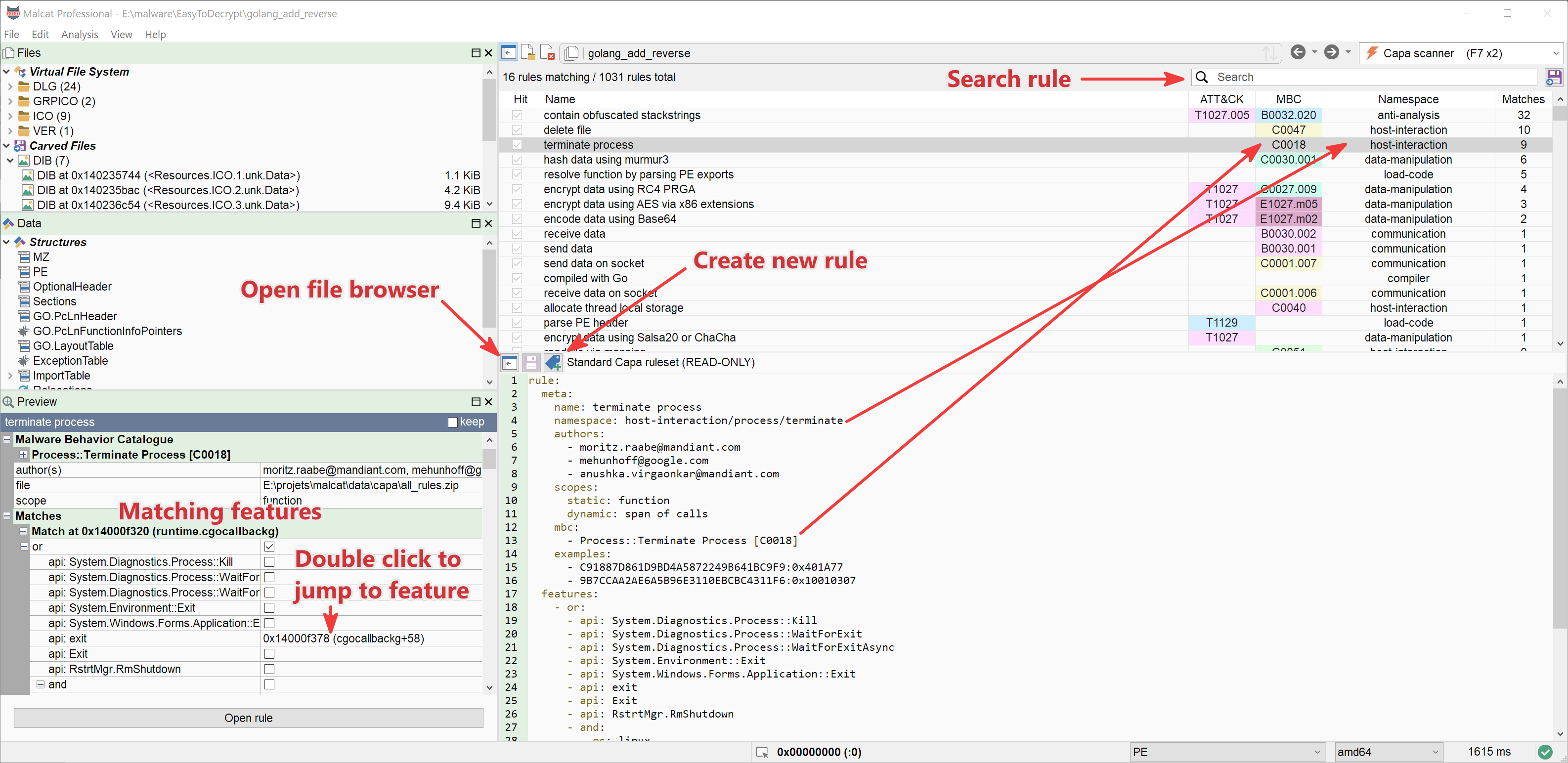
The capa rule browser / editor
When the scan finishes, Malcat switches to the Capa view and displays the result. The title bar of the view shows how many rules matched and how many rules were evaluated in total.
Viewing capa rules
Capa rules list
The upper half of the Capa view displays a list of all visible capa rules loaded for the current analyzed file. This includes matching and non-matching standard rules from data/capa/all_rules.zip as well as your user rules from the capa subdirectory of your User data directory.
The list contains the following columns:
Hit: whether the rule matched the current file.
Name: capa rule name.
ATT&CK: the first ATT&CK technique ID referenced by the rule. If the rule references more techniques, a
(+N)suffix is shown.MBC: the first Malware Behavior Catalogue ID referenced by the rule. If the rule references more behaviors, a
(+N)suffix is shown.Namespace: the top-level capa namespace of the rule.
Matches: number of times the rule matched.
Columns can be clicked to change the rules sort order. By default, matching rules are displayed first and rules with more matches are sorted before rules with fewer matches.
By clicking on a rule in the list, it will be set as the current rule and its YAML definition will be displayed in the editor below. Standard capa rules are displayed as read-only text. User rules are opened from their YAML file and can be modified.
When a rule has been selected in the list, the quick view in the bottom left displays a summary of the current rule, including:
rule name, namespace, scope and source file;
description and author(s);
ATT&CK techniques;
MBC behaviors;
match locations and the rule evaluation tree.
Clicking or double-clicking a location in the quick view brings you to the corresponding address inside the current analysis.
Current capa rule
The concept of current rule is also used by the Capa view. By clicking on a rule or after creating a new one, the current rule marker is set and the rule source is shown in the editor. Contextual actions that operate on a capa rule, such as , use this selected rule.
You can also right-click a rule in the list to open the contextual menu. Currently, this menu lets you open the selected rule in the editor.
Filtering rules
The standard capa rule set contains many rules, so filtering is often the fastest way to find the capability you are looking for. Use the search box located on the top right of the view to filter displayed rules. The filtering is done on the fly, no need to hit enter.
The text is searched in:
the name of the rule;
the author(s);
the description;
ATT&CK metadata;
MBC metadata.
Shortcut |
Action |
|---|---|
Ctrl+F |
Set focus to the view’s search box |
Adding a rule
In Malcat, you can create a new capa rule from within the interface. New user rules should be put inside the capa/ subdirectory of your User data directory. You can add a new rule by clicking on the “+” icon left of the capa rule file name text field. A dialog will be shown where you can enter the rule name and its metadata.
By clicking ok, Malcat will create a new empty capa rule in the currently open YAML file and set it as the new current rule. You can then edit the features block manually in the embedded editor.
For more guidance about the capa YAML format and the metadata fields used by Malcat, see Capa rules.
Editing a capa rule
Using the editor
You can modify any user rule using the embedded YAML editor. Standard rules loaded from data/capa/all_rules.zip are read-only and cannot be edited in place.
Once you are done editing a user rule, hit Ctrl+S or click the save icon to save the current YAML file. Malcat will then re-run the capa scanner so that the rule list and match locations reflect your changes.
If there is a syntax error or an evaluation error in one of your rules, the capa analysis will emit a warning prefixed with [capa]. These warnings include the rule name and the scope where the error happened.
Shortcut |
Action |
|---|---|
Ctrl+S |
Save current capa rule file and re-run capa |
Read-only standard rules
When you select a standard capa rule, the editor displays the rule text but the file name field shows Standard Capa ruleset (READ-ONLY). These rules are stored in Malcat’s standard capa archive and should not be modified directly.
If you want to customize a standard rule, create a user rule in your User data directory instead. This keeps your changes separate from Malcat’s bundled rules and avoids losing them during updates.
Reorganizing your rules
The Capa view includes a YAML file browser similar to the Yara view. It can be toggled by clicking on the left-most button in the middle toolbar. The browser is filtered to show YAML files (*.yml and *.yaml), which are the rule files imported by Malcat.
Using the Capa files browser and its toolbar, you can perform basic operations on your capa rule files:
You can open a YAML file inside the editor by double-clicking it.
You can add a new empty YAML file in the currently selected directory.
You can remove the currently selected YAML file. A confirmation dialog will be shown.
You can show or hide hidden files.
If you want to quickly locate your User data directory, you can click on the user button of the toolbar.
For capa file changes, save the file or re-run capa to see the changes applied.
Warning
User capa rules should be stored below the capa/ subdirectory of your User data directory. If you save a YAML rule outside the capa data directory, Malcat will warn you because the file may be ignored by the scanner.
Exporting and copying
The Capa view toolbar includes an export button which dumps the current rule list as CSV. This is useful if you want to compare capa results across samples or keep a quick report of the matching capabilities.
You can also select one or more rules in the list and copy them. When the rule list has focus, copying places the selected rule names on the clipboard. When the editor has focus, copy, paste, undo, redo and select all operate on the YAML text.